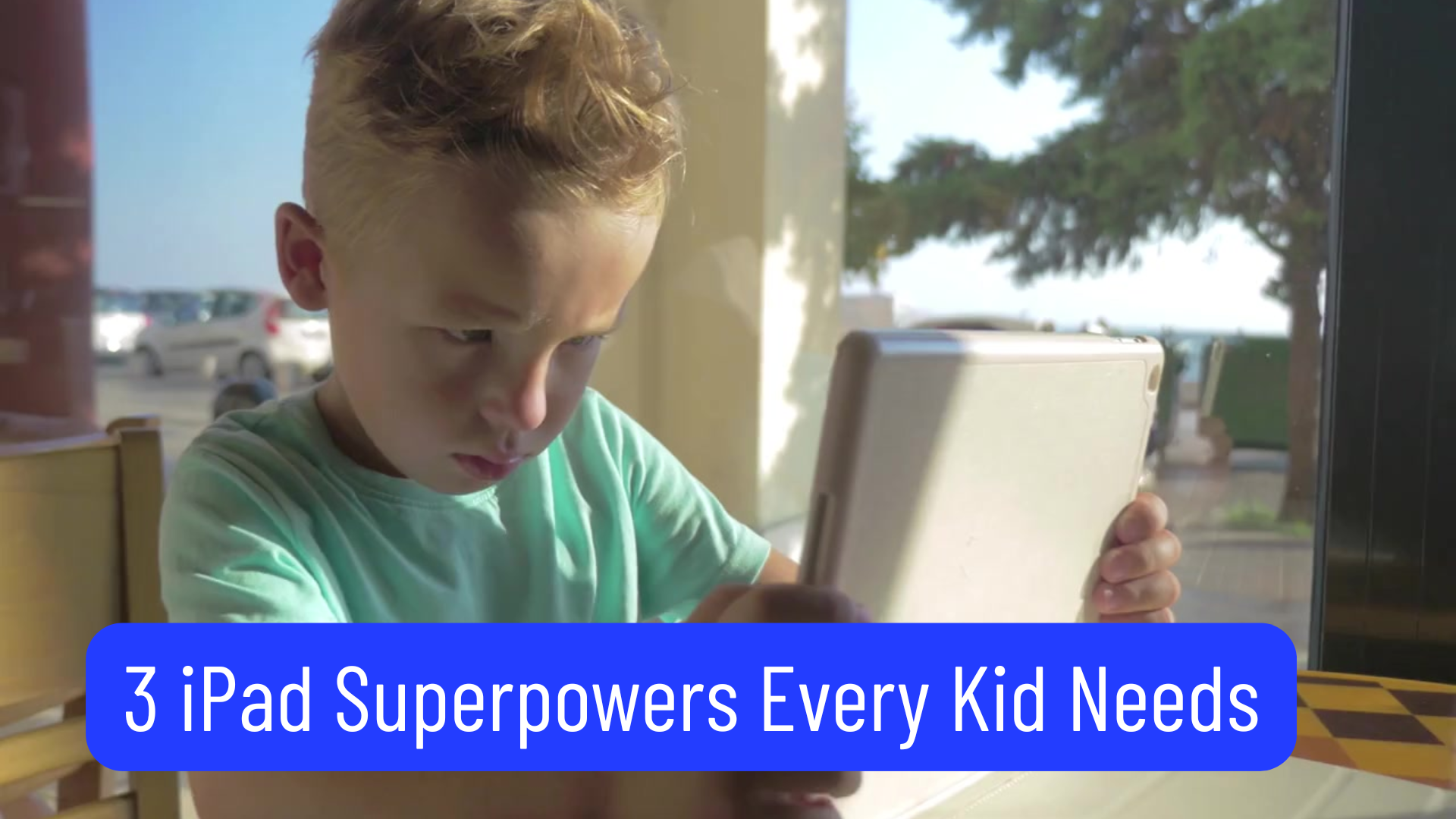
There’s nothing quite like the look on a child’s face when they realize they can control their iPad instead of just tap around on it. Lesson 1 of Apple Home School turns Caleb and Maddie from casual screen-tappers into confident little tech users with a few simple but powerful gestures they can use every day.
🎯 Today’s Big Skills
In Lesson 1, Caleb and Maddie learned three essential iPad superpowers:
-
How to find any app by swiping down and typing the first letters
-
How to close apps (one at a time—and all of them!)
-
How to put a favorite app in the Dock for quick access
These three skills give young learners real independence on their iPads, which makes every future lesson smoother and more fun.
Lesson 1 overview
In this Apple Home School session, Caleb and Maddie are learning three “iPad superpowers” to help them open apps quickly, tidy things up when they’re done, and keep their favorite tools close at hand in the Dock. These skills are simple enough for early elementary kids, but powerful enough that they’ll keep using them for years. And you may want to pick up these superpowers along with Caleb and Maddie. Let’s get started…
Superpower #1: Magic swipe‑down search
On the Home Screen, put a finger in the middle of the screen, swipe down, and start typing the first letters of any app you want, like “No” for Notes or “Ph” for Photos. This opens the iPad’s built‑in search feature so you can tap the app instead of hunting across multiple screens of icons. Very quickly, you will feel like a wizard who can summon any app on command, without memorizing where everything lives.
Superpower #2: Closing apps like a pro
Next, Caleb and Maddie will practice closing apps using the iPad’s App Switcher, which appears when they swipe up from the bottom of the screen and pause in the middle. From there, they can swipe each app’s “card” up and off the top of the screen, turning cleanup into a game of “who can clear all their apps without missing one” and giving them a sense of control over their device.
Superpower #3: Pinning favorites to the Dock
Finally, they learn how to press and hold on a favorite app until it starts to wiggle, then drag it down into the Dock at the bottom of the screen and let go. Once an app is in the Dock, it’s always easy to find, which makes their iPads feel customized just for them and keeps their best learning tools only one tap away.
Homework and why it matters
The homework is simple: find three apps with the swipe‑down search, close all their open apps, and add one favorite app to the Dock—earning an “iPad Superhero Star” when you’re done. These basics prevent frustration, encourage good habits, and help kids see the iPad as a flexible learning tool instead of just a source of entertainment, laying the groundwork for every future Apple Home School lesson.
📺 Want to Follow Along? Watch the Apple Home School Playlist!
If you’d like to see these lessons in action, we’ve created a dedicated 🍎 Apple Home School Playlist on Pop’s YouTube Channel.
Just visit ApplePlayList.com — it takes you straight to the playlist on YouTube.